 Enlyzr
MyActiveTask
Start your VPN when you leave home Wi-Fi
MyActiveTask turns where your phone is and what it is connected to into actions. When you leave your home Wi-Fi, it can knock on your own server, start your VPN and check that the tunnel works. When you get home, it switches the VPN off again. An automation is a set of conditions plus two lists of steps: one runs when the conditions become true, the other when they stop being true. No root, no account, no cloud.
For Android 10 and newer. Free, with no ads and nothing to buy.
- 18kinds of condition, from the Wi-Fi name to an MQTT message
- 15kinds of action step, from a port knock to a webhook
- 5ready-made automations to start from
- 11live values to put into a message, such as the Wi-Fi name
What it does
VPN away from home, without an open port
fwknop Single Packet Authorization: one encrypted, authenticated packet opens your server's VPN port for your phone only. To everyone else the port stays closed. The app builds the packet itself, and fwknop settings can be imported from a QR code.
OpenVPN, started and checked
Starts and stops profiles in OpenVPN for Android and waits until the tunnel is up. It knocks again when you switch between Wi-Fi and mobile data. An optional health probe, a host reachable only through the tunnel, catches a VPN that says connected but carries nothing, and reconnects it.
18 kinds of condition
Wi-Fi network, trusted or untrusted network, connection type, working internet, battery, charging, a Bluetooth device such as your car, time of day and weekdays, a geofence, screen and lock state, a device on your home network, an MQTT message, another automation being active. Combine them in AND and OR groups.
15 kinds of action
SPA knock, VPN, wait until, HTTP request for webhooks such as Home Assistant or n8n, open a URL or play a stream, MQTT publish, Wake-on-LAN, ringer and Do Not Disturb, torch on, off or blinking, media keys, launch an app, wireless debugging, delay and notification. Text fields can carry live values such as the Wi-Fi name.
See why it did what it did
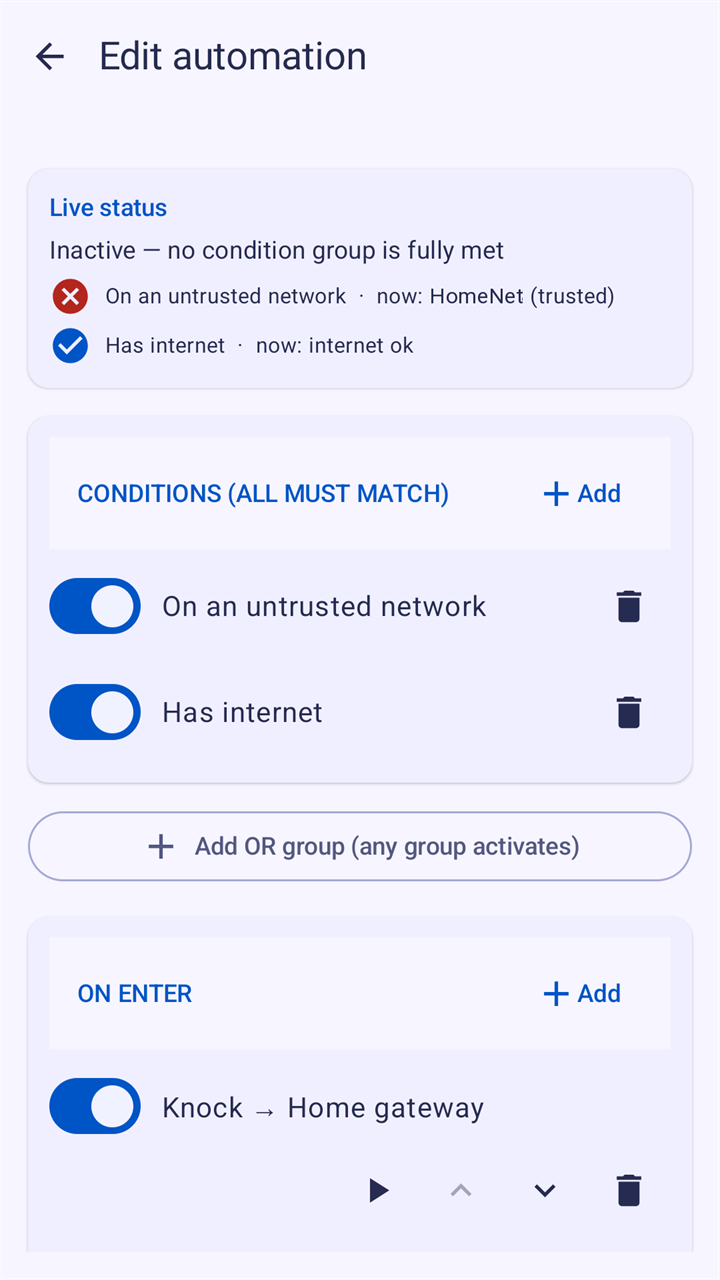
Each condition shows its current value and whether it matches. A simulator answers would this activate on another Wi-Fi without running anything. Run an automation or one step on demand, let a connection check test each link of the VPN chain, and read on the Status screen what fired, when and why.
Built to keep running
A change counts only after it has held for a few seconds, so the edge of your Wi-Fi does not switch the VPN on and off. Cooldown and run-once options limit repeats, a watchdog restarts the service if it stops, and it starts again after a reboot.
Within reach
A master switch, two Quick Settings tiles, a pause of one hour for everything, buttons in the notification and shortcuts on the app icon. If you allow it, Tasker or an NFC tag app can start an automation with a secret token.
Templates and backups
Five ready-made automations to start from, such as VPN on untrusted Wi-Fi or silence at night. Back up everything to one file, protected with a passphrase if you like, or share a single automation without its keys.
Your settings stay on your phone
No account and no ads, and nothing is sent to the developer. Automations, server keys and passwords are encrypted on the phone with the Android Keystore and stay out of Android's backup. The app connects only to the servers, webhooks and MQTT brokers you set up.
A look at the app
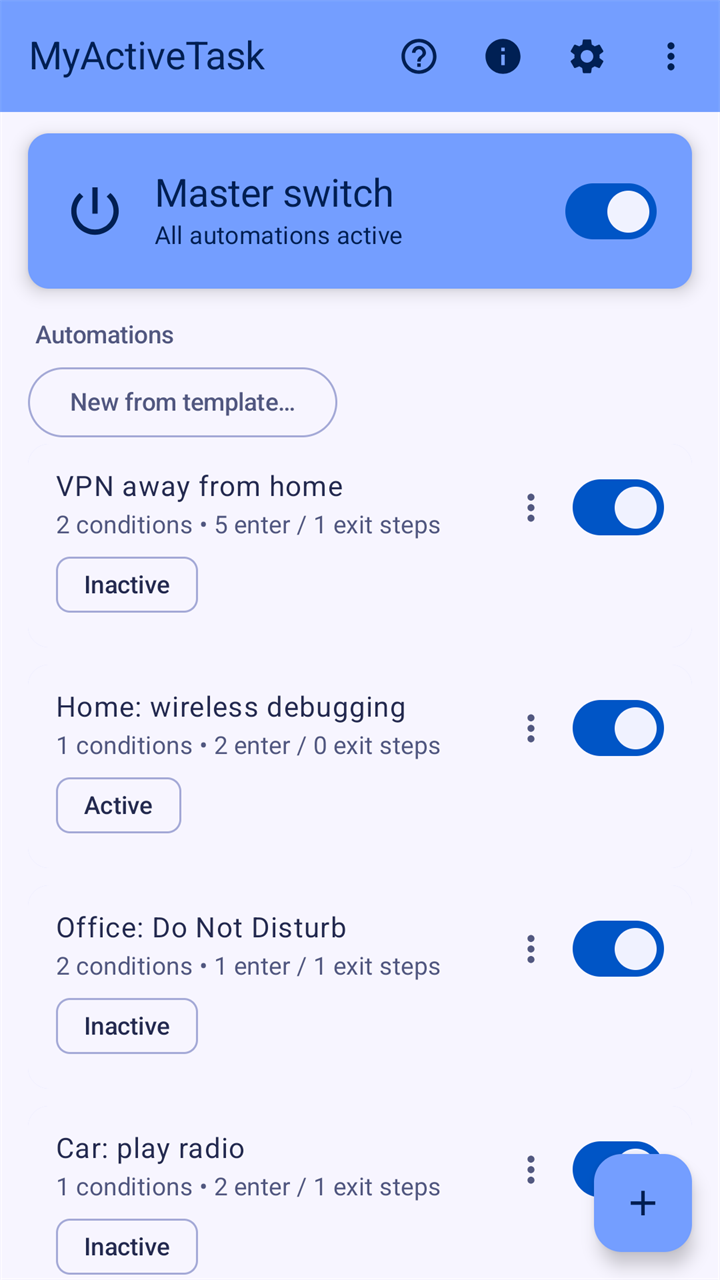
Your automations, each with its state Live status: which condition holds, and why 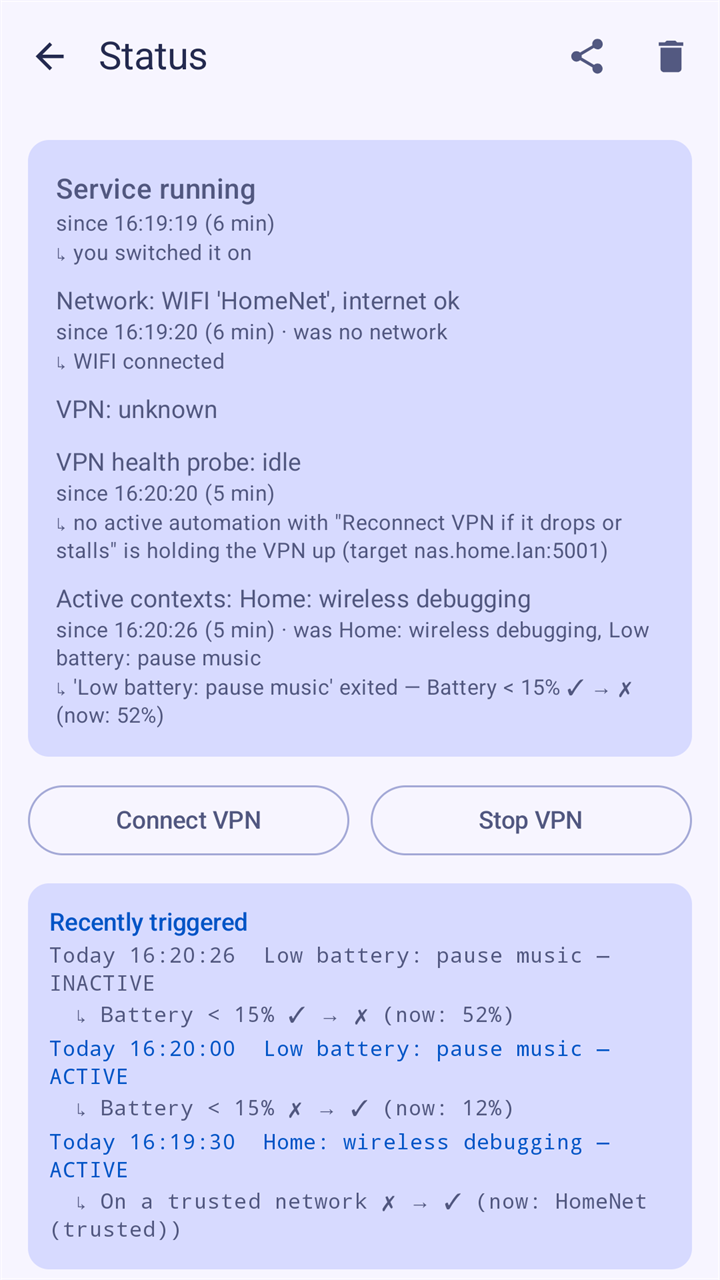
Status: what fired, when and why 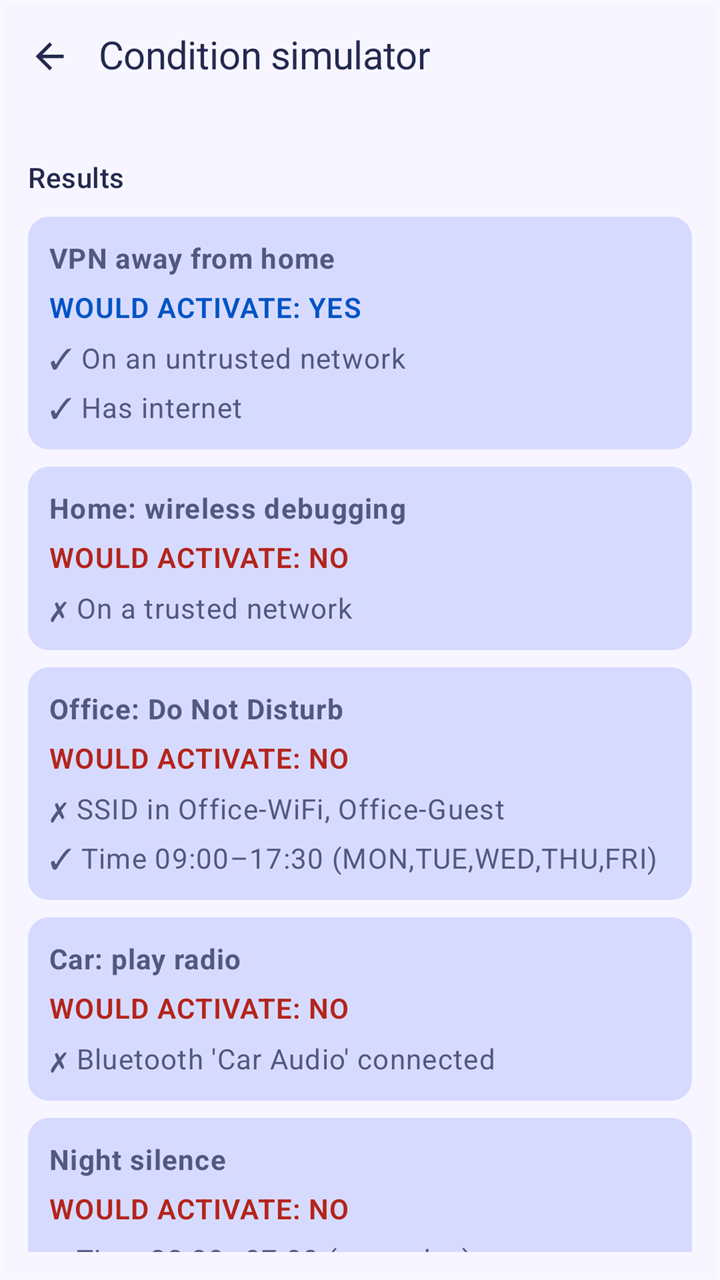
Would it activate? The simulator answers 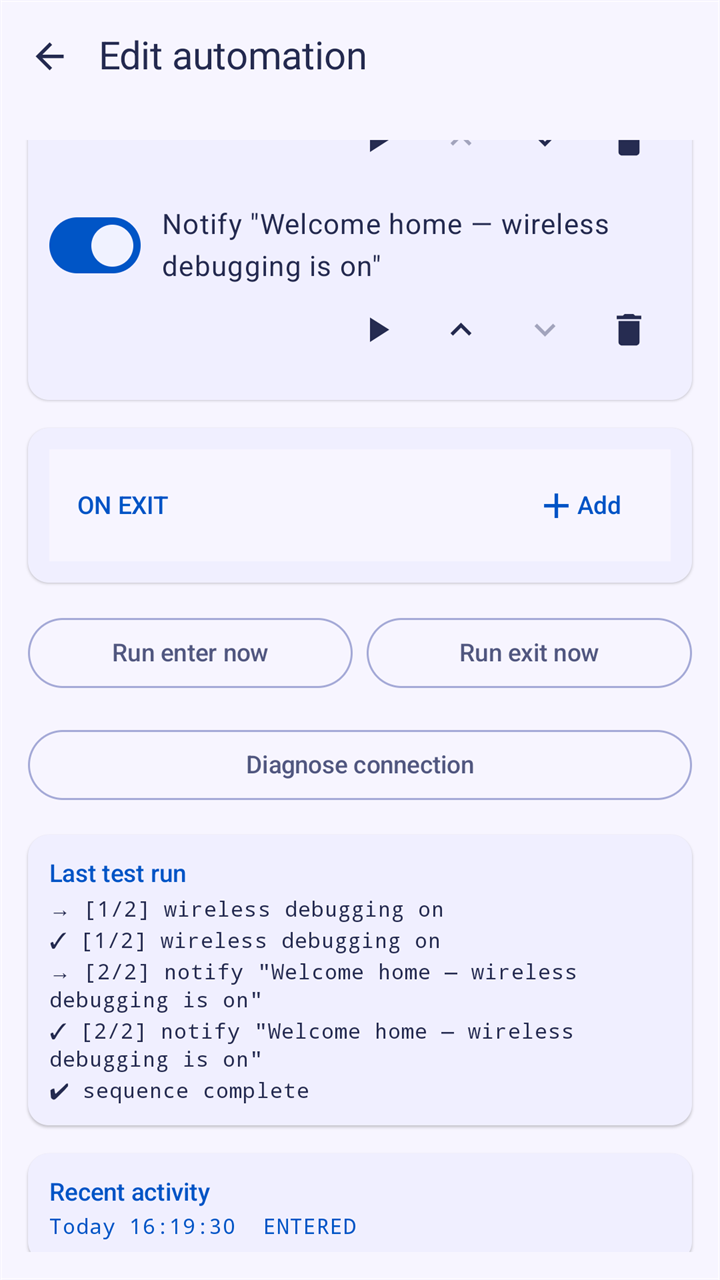
Run it now and see each step's result 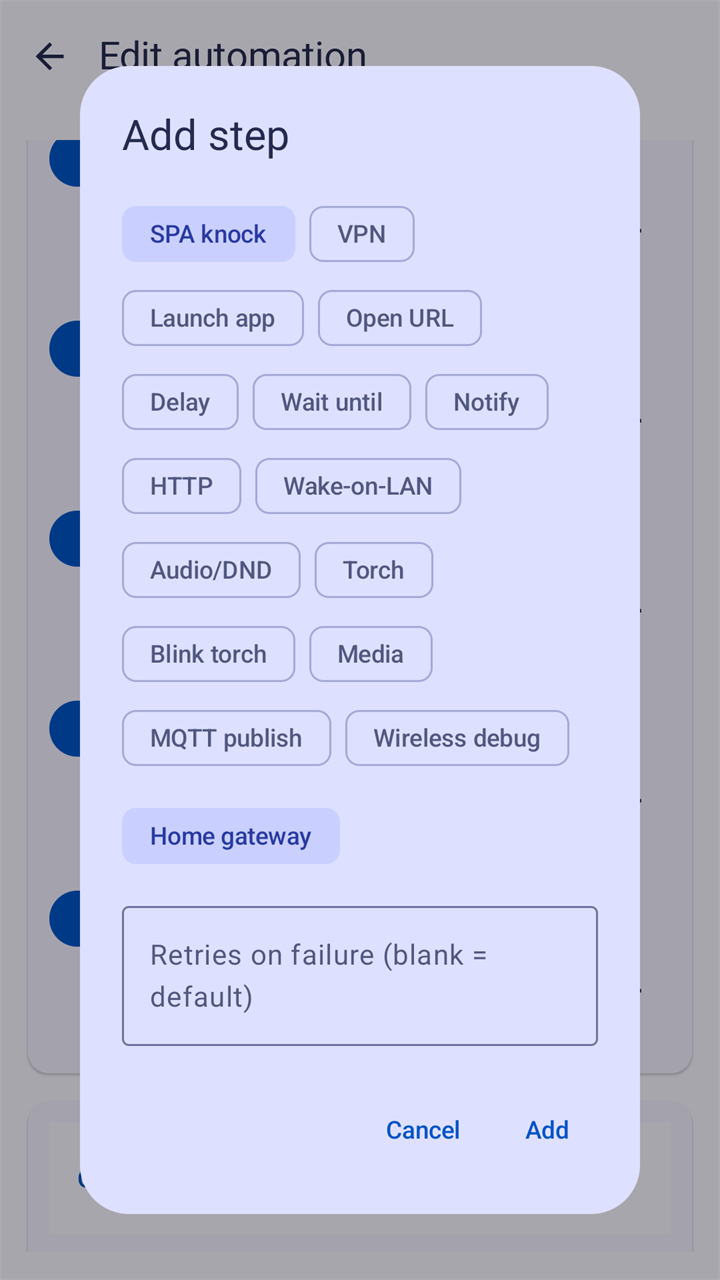
Fifteen kinds of step 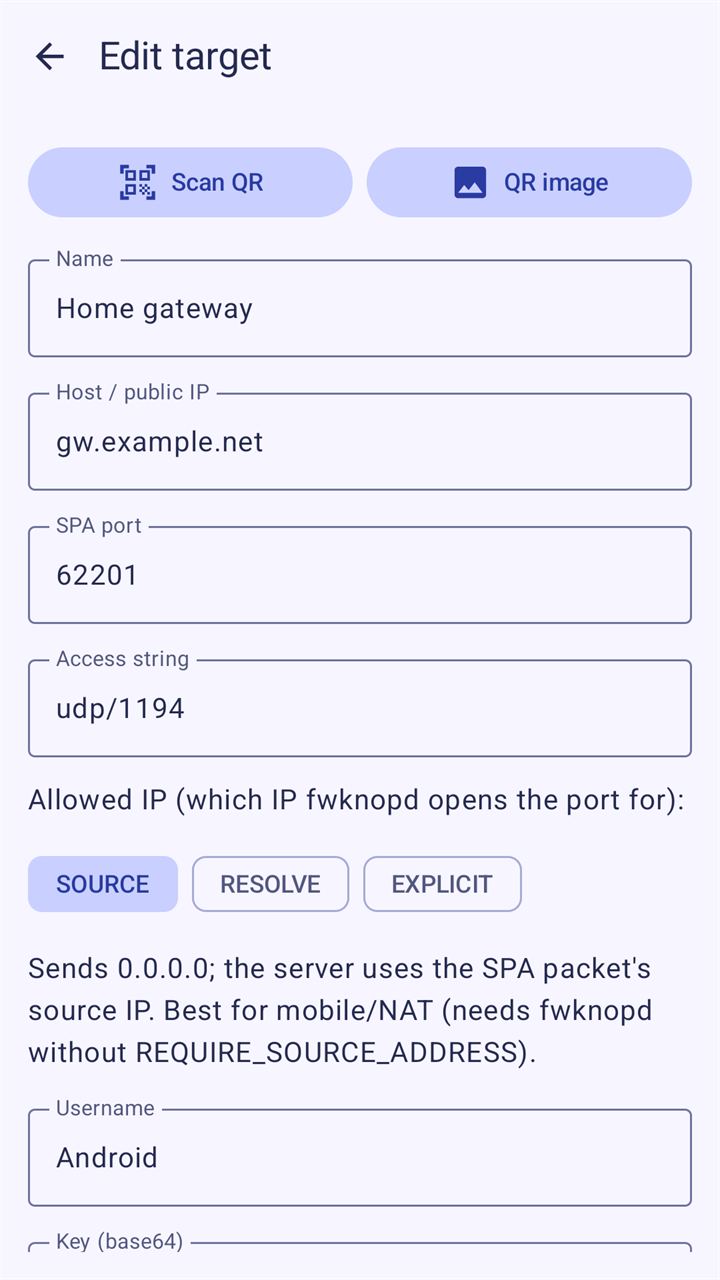
An fwknop target, also from a QR code 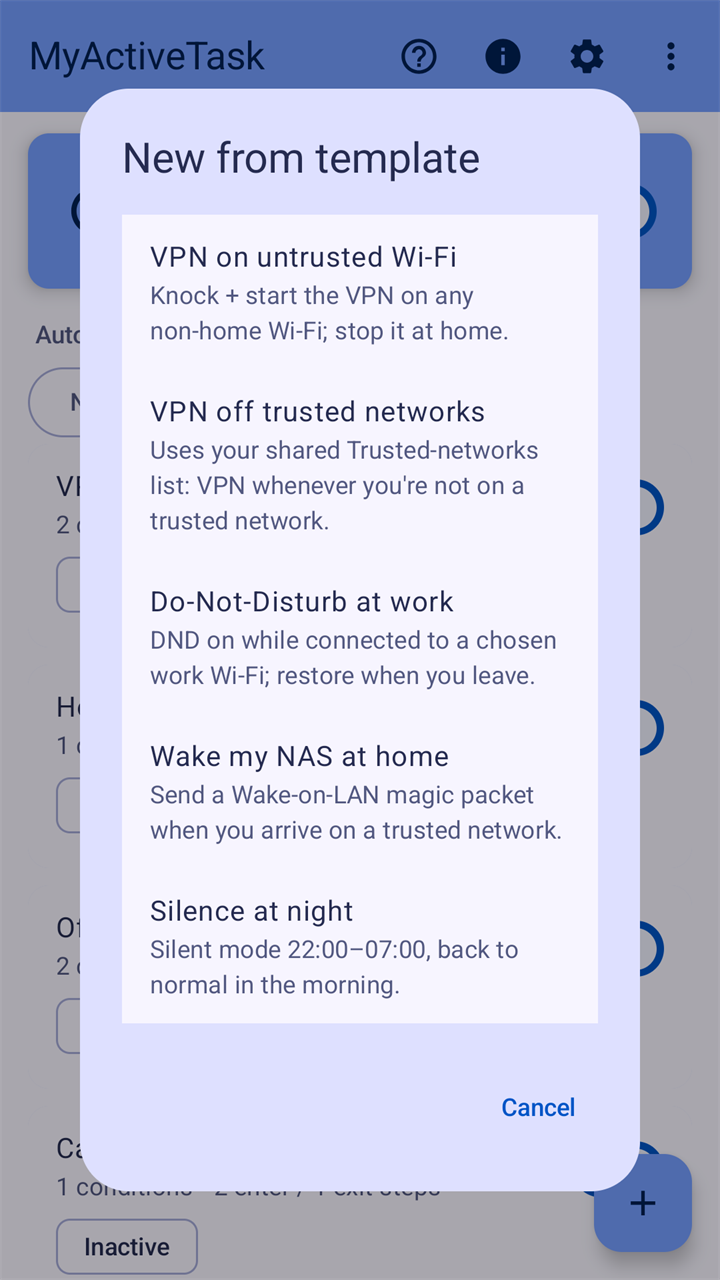
Five templates to start from
Good to know
- VPN steps need the free app OpenVPN for Android (not OpenVPN Connect) and a VPN server of your own. SPA knocking needs an fwknop server. Everything else works without either.
- Android lets apps read the Wi-Fi name in the background only with location set to "Allow all the time". Location is used on the phone to check your conditions.
- Turning wireless debugging on and off needs a one-time adb command, which the app shows you.
- The app is in English. It runs on Android 10 and newer.
OpenVPN is a registered trademark of OpenVPN Inc. MyActiveTask is an independent app and is not affiliated with OpenVPN Inc., or with the authors of OpenVPN for Android or fwknop.
Questions and answers
What do I need for the VPN part?
The separate app OpenVPN for Android (not OpenVPN Connect) with your profile imported into it, and an OpenVPN server to connect to. For port knocking the server must also run fwknopd, the server program of fwknop. Everything else works without either; the MQTT condition and action need an MQTT broker.
What is port knocking, and why would I want it?
A server that answers on its VPN port can be found by anybody who scans the internet. With fwknop the server's firewall keeps the port closed until it receives one packet that is encrypted and signed with keys only you and the server have; then it opens the port for your phone's address. MyActiveTask sends that packet just before it starts the VPN.
Does it need root?
No. It runs on an ordinary phone with Android 10 or newer. One action needs more than a tap on the phone: switching wireless debugging needs a permission that you grant once from a computer with adb. Setup shows the command.
Why does it ask for location "all the time"?
Android shows the name of the connected Wi-Fi only to apps with the location permission, and while the app is closed only with "Allow all the time". Without it the app could not notice that you came home. Your position itself is read only while an automation has a condition for a place.
Does it keep working after the phone restarts?
Yes, if the automation service was switched on. It starts again after a restart of the phone and after an update of the app, and automations that still apply run their on-enter actions again, so the VPN comes back. Some phone makers stop background apps eagerly; Setup shows what to allow.
What does the app know about me, and who gets it?
Your automations, your server keys and a history of the last 50 events are stored encrypted on the phone and are not part of Android's backup. The app has no account and no advertising and sends nothing to Enlyzr. It talks to the servers you enter; the few exceptions, among them Google's QR code scanner, are listed in the privacy policy.
What does it cost?
Nothing. MyActiveTask is free. There is nothing to buy in the app, no subscription and no advertisements.
Coming to Google Play
MyActiveTask is not listed on Google Play yet. This page will carry the link as soon as it is.
Questions or feedback: enlyzr@gmail.com